Click on the Auto Mode button at the top of the form. This mode will execute the algorithm N times depending on the parameters selected.
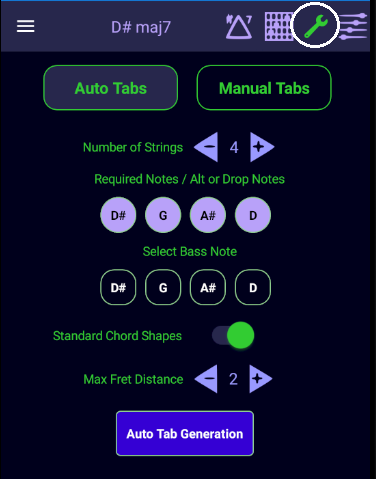
Whenever you select a different Root Note, Chord, Instrument or Tuning then Auto Mode will reset to a default configuration. This is designed so that the initial tabs that are displayed correspond to standard chord shapes (drop 2's & drop 3's) using 4 notes from the chord. The only exception to this is 3 note triad chords.
Standard Chord Shapes represent a pre-defined string sets that are typically used to play chords. For example a drop 2 chord voicing in jazz for a 4 note chord would commonly occur on the following strings: "4 3 2 1" and "5 4 3 2". A drop 3 voicing would occur on these strings "5 3 2 1" and "6 4 3 2". The standard shapes also depend on how many notes in the chord you are playing. For example a 5 note chord would typically be played on the "5 4 3 2 1" or "6 5 4 3 2" strings.
Example: D# maj7: 4 notes: 4 strings: Standard Shapes
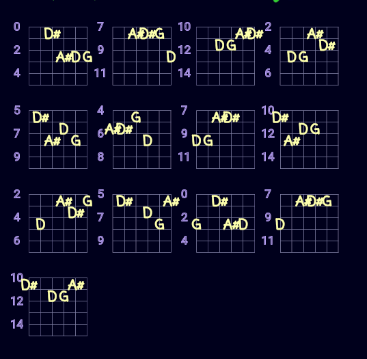
The app maintains a large list of Standard Chord Shapes based on the number of notes in the chord and the instrument you have chosen.
Non Standard Chord Shapes contains every other combination of string sets based on the [Number of Strings] selected. Examples for a 4 note chord would be "6 4 2 1", "6 5 3 2" and ""5 4 2 1" and so on.
Example: D# maj7: 4 notes: 4 strings: Non Standard Shapes
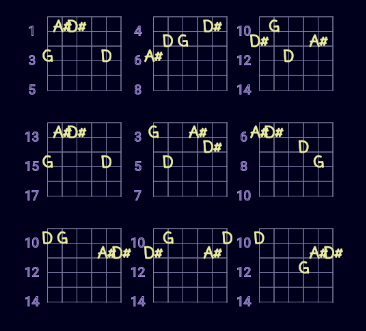
[Standard Chord Shapes] specify typical string combinations used to play a chord while non-standard shapes represent all other string combinations that are left.

The {Number of Strings] simply specifies how many string you want to play a chord on. This works in conjunction with [Standard / Non Standard Shapes] to define the string combinations the Tab algorithm will use to look for tabs.
If you choose 4 chord notes over 5 strings then the alogrithm will find every tab containing the 4 notes plus one duplicate note.
Example: D# maj7: 4 notes: 5 strings: Standard Shapes
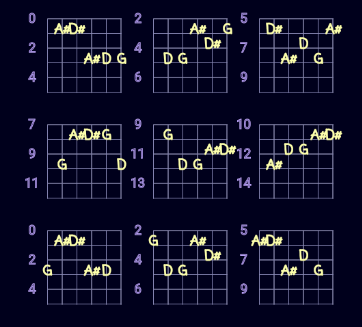
Example: D# maj7: 4 notes: 6 strings: Standard Shapes: Only one string set containing all strings "6 5 4 3 2 1"
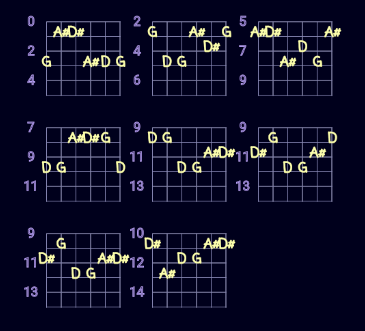
Example: D# maj7: 4 notes: 5 strings: Non Standard Shapes
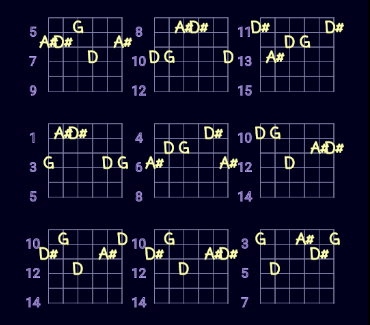
The [Number of Strings] and the [Standard / Non Standard Shapes] are used together to determine the string sets the algorithm will search on.
Max Fret Distance determines the maximum distance between the lowest fret and the highest fret in a given tab that the algorithm will look for.
Example: D# maj7: Max Fret Distance = 3: 4 notes: 4 strings: Standard Shapes: Notice the distance between frets is greater in some tabs.
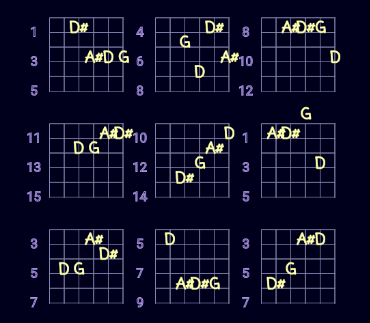
The Max Fret Distance is the maximum fret distance allowed between the lowest fret and the highest fret in a chord tab.
Sometimes you will notice that the value of Max Fret Distance increase by 1 when you select the Tab Generate button. This is because the algorithm found no results at the current value and so it will iteratively increased the [Max Fret Distance] by 1 until it finds results.
In AUTO or MANUAL mode the [Max Fret Distance] value will be increased by 1 if it does not find any results. It will continue this iteration until results are returned or it hits a nax value of 4.
You can select one Bass Note so that the algorithm will only find tabs where the selected note is the lowest note.
Example: D# maj7: Bass Note is G: Max Fret Distance = 3: 4 notes: 4 strings: Standard Shapes: Notice that every tab has the G as a bass note.
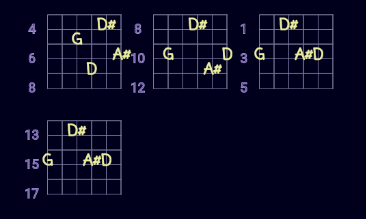
SLASH Chord - You can generate any standard slash chord by selecting a bass note. This chord could be labeled as D#Maj7/G.
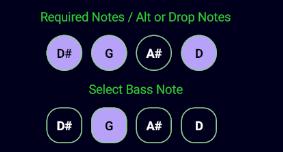
You can turn OFF a chord Note so that it will not be included in the algorithm search.
Example: A3 is turned OFF: Bass Note is G: Max Fret Distance = 3: 3 notes selected: 4 strings: Standard Shapes
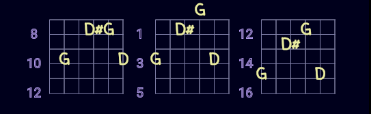
Example: A3 is turned OFF: Bass Note is G: Max Fret Distance = 3: 3 notes selected: 4 strings: Standard Shapes
You must select at least 3 notes otherwise you get a warning message.
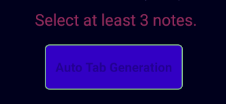
Notes that have been deselected are not included in the tab generation. If the [Chord Notes] selected is less than the [Number of Strings] selected then the tab generator will find tabs that include ALL selected notes plus any duplicate note(s). Finally you can only generate Tabs with at least 3 notes.
All chords with more than 4 notes will have drop notes pre-assigned to them. If you go select a new chord (maj9) with more than 4 notes then the drop notes configured will be turned OFF to find a standard 4 note chord. Remember when you select a new chord AUTO mode is reset back to default configuration which sets the [Number of Strings] to 4 so in this example the A# is turned off
Example: D# maj9: default configuration
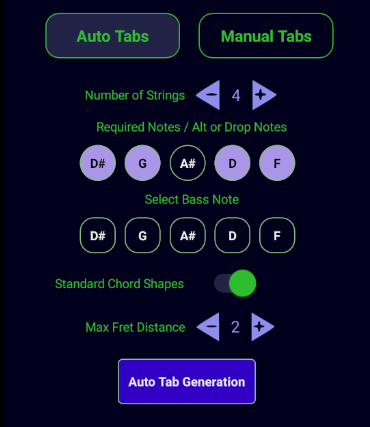
You can choose which note to drop. The pre-assigned drop notes are just a recommendation. There is no RULE set in stone...Whatever sounds good!
Remember depending on the instrument selected you can always increase the {Number of Strings] to turn ON all notes for the tab.
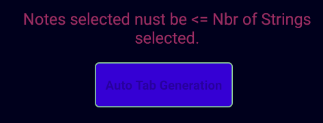
You cannot select more [Chord Notes] than [Number of Strings] to play on.